Fundraising Operations
Finta MCP and Aurora Apps: Choose the Right Connection
Choose between external assistants using Finta MCP and Aurora using connected Apps, with distinct account and permission checks.
What you will learn
- Distinguish external assistant access to Finta from Aurora access to an App.
- Check account, organization, live tools and a known source.
- Review the exact action and read back the result.
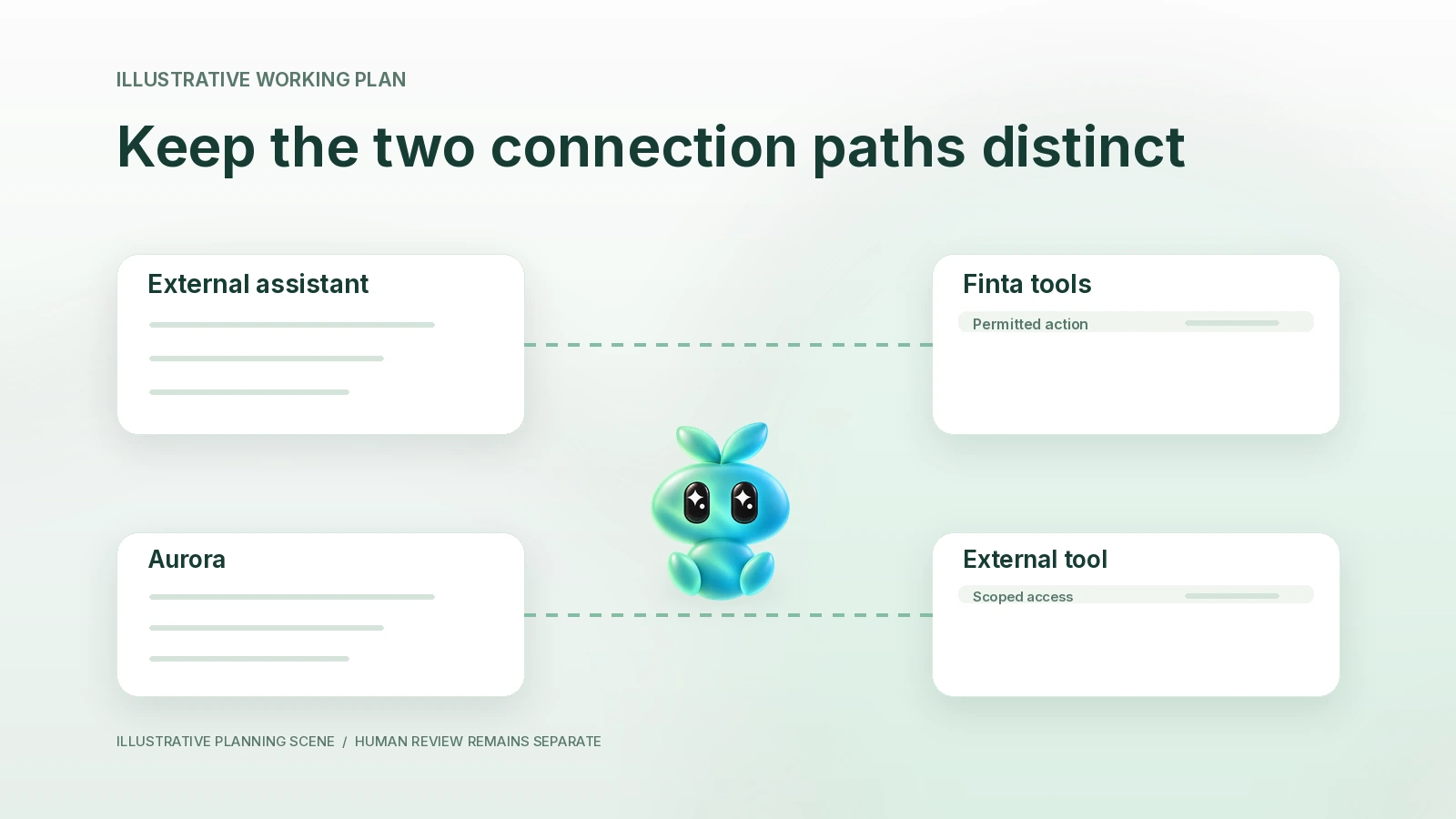
Use Finta MCP when an external assistant needs authorized Finta tools. Use an Aurora App connection when Aurora needs a supported external source. These are different directions with separate account checks, tool inventories and action permissions. Connecting one does not establish the other or create automatic two-way synchronization.
Source check: October 22, 2026. This guide follows current Finta documentation and reviewed implementation. It does not report a newly completed authenticated connection or claim that every MCP client supports every Finta tool.
Choose the direction before setting anything up
MCP, the Model Context Protocol, lets a client discover and use tools offered by a server. For this task the important question is practical: which assistant is doing the work, and which service holds the source or action?
| Question | External assistant using Finta | Aurora using an external App |
|---|---|---|
| Where do I give the task? | In a supported external assistant or MCP client. | In Aurora in Finta. |
| What supplies tools? | Finta's authenticated MCP service. | The connected App's available tools. |
| What do I verify? | Finta account, organization, requested access and discovered tools. | Provider account, workspace, allowed sources and discovered tools. |
| What is not implied? | Access to every App connected inside Aurora. | An external assistant's access to Finta or automatic synchronization. |
A role description is not a permission partition. In Aurora, connected App accounts belong to the individual user and available Skills are organization resources. Naming a research responsibility does not grant a new source or guarantee isolation from another role.
Prepare a connection decision record
Before authorizing a connection, write down the following record. It is useful even if the final decision is to paste a small permitted source packet instead.
| Field | Your value | Stop condition |
|---|---|---|
| Task and direction | [One output; assistant → service] | The requested connection does not serve this task. |
| Identity and organization | [Expected signed-in account and workspace] | The displayed account or organization differs. |
| Needed source/action | [Exact records or capability] | The discovered tool or requested access is broader than intended. |
| First check | [One known, permitted item] | The item is absent, ambiguous or from another workspace. |
| Review and receipt | [Human reviewer; expected readback] | The action, recipient or changed state cannot be inspected. |
Do not put passwords, tokens, private callback URLs or cookies in this worksheet. Record the account label and the decision, not the secret used to authenticate it.
Connect an external assistant to Finta
- Read the current Finta MCP overview and the installation instructions for your actual client in Finta Docs.
- Use Finta's documented endpoint,
https://finta.ai/mcp, through the client's supported connection flow. - Complete the ordinary account authorization and confirm the intended Finta organization. Stop on a wrong account, unexplained access request or unsupported client flow.
- Inspect the live tools and scopes. A published reference describes the documented surface; it does not prove that your current session has every capability.
- Start with a bounded, read-only request about a known permitted item. Compare the returned identity and content with the source you expected.
- Review any proposed consequential action separately, then inspect the actual result after an authorized action.
Finta documents confirmation flows for selected consequential tools. Do not assume that every possible local write is protected by the same approval card. State your own read/draft boundary clearly and check the specific tool before using it.
Connect Aurora to an external App
Start from the official Apps directory, confirm that the App and needed capability are available, and use its normal account authorization. Some custom MCP services may be supported, but a compatible protocol is not evidence that a particular provider, client or permission combination has been tested.
Check the provider account and workspace, then retrieve one known permitted item before asking for a broad summary. A public App listing establishes catalog availability, not successful retrieval in your account. If the source cannot be verified, use a permitted supplied excerpt and label the reduced coverage.
Fictional worked example: the right source, no unintended action
A founder at the fictional company Harbor wants a relationship brief. In an external assistant, the intended source is Harbor's Finta contact record. Inside Aurora, the intended additional source is a permitted meeting note in a connected notes App. The founder records these as two separate directions.
The first Finta read finds two contacts named Alex. The founder resolves the company and record identity before continuing. The notes App then returns a meeting from a different workspace. That source is rejected, and the founder supplies the correct permitted excerpt instead. Neither connection decision authorizes an email, CRM change or provider workspace switch.
Help me plan an MCP task, using Aurora AI in Finta, Claude or Codex only where the actual client supports the required connection.
Desired output: [one bounded output]. Direction: [external assistant to Finta / Aurora to external App]. Expected account, organization/workspace and permitted source: [details].
First list the tools and access needed. Separate documented availability from tools actually discovered in this session. Ask me to resolve a wrong account, missing permission or ambiguous record.
Use a read-only check of one known permitted item before broad retrieval. Do not connect accounts, change workspace, save, send, delete or enable a routine from this planning request. Treat missing evidence as unknown. Return the source references, coverage limits, proposed next step and exact human review needed.
Common questions
Does MCP mean all my tools stay synchronized?
No. A connection exposes specific tools under specific authorization. Synchronization, scheduling and source freshness need their own evidence and configuration.
Can I assume a client works because it supports MCP?
No. Follow the current instructions for that client and inspect the actual connection and tools. This guide does not claim tested compatibility for an unverified client.
What if I only need one document?
A permitted, dated excerpt can be the simplest source packet. Keep its origin and limitations visible; connecting a broad account is not a prerequisite for every useful task.
Continue with the source freshness register when connected information will be reused, or review a meeting-to-CRM change set before any durable update.